Our own hardware
FireBird controllers made for TheBuilding.Cloud
FireBird is our own range of controllers for doors, gates and barriers. Fit one, add it to your account by its label, link it to the door, and it takes PIN codes, cards, remotes and unlock commands from the cloud.
Every unit shows whether it is online, how strong its connection is and when it was last heard. New firmware reaches units remotely, so improvements arrive without a site visit.
Ranges
200A and 202A Series
Updates
Firmware over the air
Fit it, scan it, link it to the door
- steps from the box to an online door
- 4
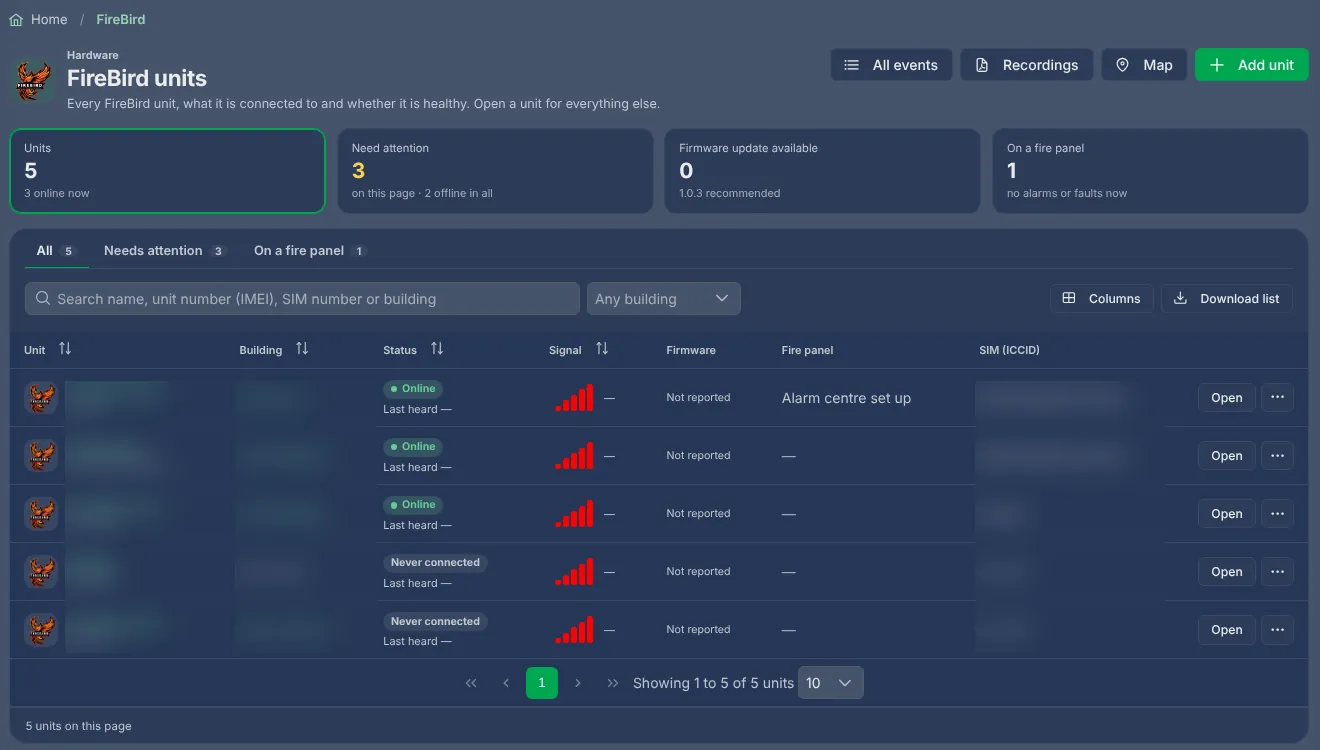
- states shown: online, offline, restarting, never connected
- 4
- ways in: PIN, card, QR, remote and the app
- 5
- places to see its event logs: the dashboard and the app
- 2
How it works
From box to working door in four steps
Wiring is in each model's manual; the cloud side takes a few minutes.
-
1
Install and power it
Wire the controller to the lock, gate or barrier as its manual describes, and power it up.
-
2
Add it by its label
In Hardware, choose FireBird, Add unit, and type the unit number or scan the label's QR code.
-
3
Check it is online
The list shows Online, Offline, Restarting or Never connected, with the time it was last heard.
-
4
Link it to the door
Edit the door, choose FireBird as its hardware, pick the unit and output, and add a reader if it has one.
What does it run?
One controller, every kind of entrance
Pick what you are fitting it to.
Locks on doors
A relay output opens the lock from a code, the dashboard, the app or a schedule.
- PIN codes and cards sent to the unit.
- Unlock from the door page or the app.
- Schedules switch the same output.
Gates, barriers and remotes
Learn remote fob codes and open gates and barriers like any other door.
- Remote fobs for gates.
- Number plates through car park cameras.
- Online status for every unit.
A fire panel interface
Connected to a fire panel, FireBird sends its fire, fault and reset lines to the cloud.
- Fire, fault and reset lines.
- Use them in automation rules.
- Logged with the unit's events.
Hardware that keeps up with the platform
FireBird is designed with the cloud, so the features you use in the dashboard reach the door.
Doors, gates and barriers
Relay outputs open locks, gates and barriers, from people's codes, the dashboard, the app or a schedule.
Codes, cards and remotes
PIN codes, cards, QR codes and remote fobs are sent to the unit and taken off again when access ends.
Online status and signal
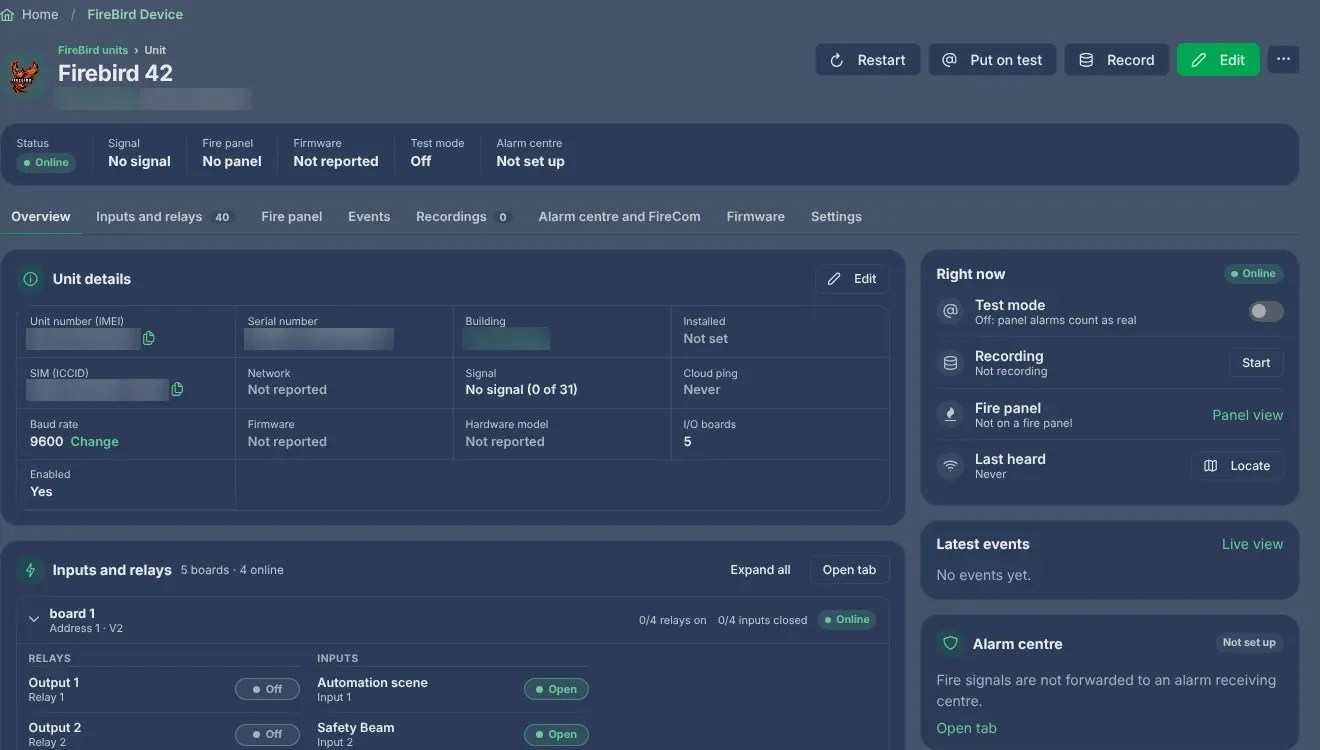
See each unit's status, signal strength and last contact, and get told when one goes offline through automation.
Firmware updates over the air
Units are updated remotely to versions we publish and recommend, with a way back to an earlier version if needed.
Fire panel interface
Connected to a fire panel, FireBird sends its fire, fault and reset lines to the cloud.
Event and I/O logs
Each unit keeps its events and input and output logs, in the dashboard and the app.
In the product
Real screens from the dashboard
Taken from our demo organisation on 7 November 2026. Unit numbers, SIM numbers and building names are blurred.
Who it's for
For installers and sites that want hardware that just works
FireBird is the hardware side of TheBuilding.Cloud, for doors, gates and barriers that need cloud control.
Installers
Fit, scan and link a unit on site, and update it remotely afterwards.
Building managers
See which doors are online and get told when one isn't.
Gated sites and car parks
Control gates and barriers with remotes, codes and number plates.
Fire and security teams
Bring a fire panel's status online through FireBird.
Problems it solves
- Controllers that can only be changed with a laptop on site.
- No way of knowing a door controller has gone offline.
- Firmware that never gets updated once installed.
- Gate remotes managed on a separate box with no list of who has them.
- Hardware from one supplier, software from another, and nobody owns the gap.
- Manuals that are hard to find when you are standing at the door.
Works with
The FireBird range
Manuals for every model are online, with wiring, setup and troubleshooting.
FireBird 200A Series
Our access controller for doors and gates, with its installation and user manual online.
FireBird 202A Series
A dual-relay controller with a built-in 433 MHz remote receiver, Stand-Alone or Cloud Mode over Wi-Fi.
Readers and keypads
Add a reader to a FireBird door for cards, codes and passkey unlock.
I/O boards
Connect an I/O board to a unit for more inputs and outputs.
Fire panels
FireBird reads the panel's fire, fault and reset lines.
Automation
Unit events and offline alerts can start automation rules.
Everyday examples
A yard gate
A FireBird 202A on the gate takes residents' remote fobs, and the manager removes a lost remote from the dashboard.
A main entrance
A FireBird controller with a reader opens the door for cards, codes and phone door keys.
An offline alert
A unit loses its connection; an automation rule tells the installer to check it.
A firmware update
A new recommended version is published and installed remotely, without a site visit.
Why TheBuilding.Cloud
Why FireBird
Made for the platform
New features reach your doors without changing hardware suppliers.
Visible
Online status, signal and last contact for every unit.
Updatable
Firmware updates over the air, with a way back.
Flexible
Doors, gates, barriers and fire panels from one family.
Safe to switch modes
Moving a unit between Stand-Alone and the cloud is designed never to break it.
Documented
Manuals online, with plain-English setup guides.
Questions about FireBird controllers
How do I add a FireBird unit?
What if I see Device Not Found?
Can FireBird work without the cloud?
How are firmware updates done?
Do I need FireBird to use TheBuilding.Cloud?
Where are the manuals?
Guides and next steps
Connect a FireBird controller
Add, check and link a unit.
Add your first door
Link the unit to a door.
FireBird manuals
Wiring, setup and troubleshooting.
Fire and intruder alarms
Fire panels online through FireBird.
PIN codes, cards and QR codes
What a unit receives.
Plans and pricing
The FireBird add-on on each plan.
The hardware behind your cloud doors
FireBird takes what you set up in TheBuilding.Cloud, from codes to schedules to automation, and makes it happen at the door.
Same codes
PIN codes, cards and remotes reach the unit by themselves
Same schedules
Door schedules switch FireBird outputs
Same alerts
Offline units can start automation rules
FireBird controllers
Put your doors, gates and barriers in the cloud
Fit a FireBird controller, scan it into your account and manage it from anywhere.